TechIDManager grants Active Directory permissions by adding and removing users from Active Directory security groups. These groups can be the any of the standard AD groups or custom AD groups that you create/name/setup to do what ever you want. This example shows one such setup of a custom AD group and how to add that AD group as a TechIDManager Right and have techs added and removed from that AD group to get permissions in that AD.
In the following example, we want to create an AD group which will allow T1 techs to move users from one OU to another as well as reset passwords. This same process applies for any number of configurations.
If you want technicians to move users between OUs, reset passwords, create users, and disable users — without making them Domain Admins — you must delegate those rights in Active Directory and map the AD group in TechIDManager as a Right.
What This Solves?
- Technicians needing limited user management access
- OU-specific delegation
- Avoiding Domain Admin usage
- Avoiding Account Operators issues on DCs
- Clean separation of roles (T1,T2,etc.)
- Least privilege enforcement
Step 1 – Create a Security Group in Active Directory
Windows dialogs often change over time, so these screens shots are for reference. The specific dialogs seen might differ based on the version of windows in use.
On the Domain Controller:
Open Active Directory Users and Computers.
Create a new Security Group.
Example:
Lab-T1-UserMove
Scope: Global
Type: Security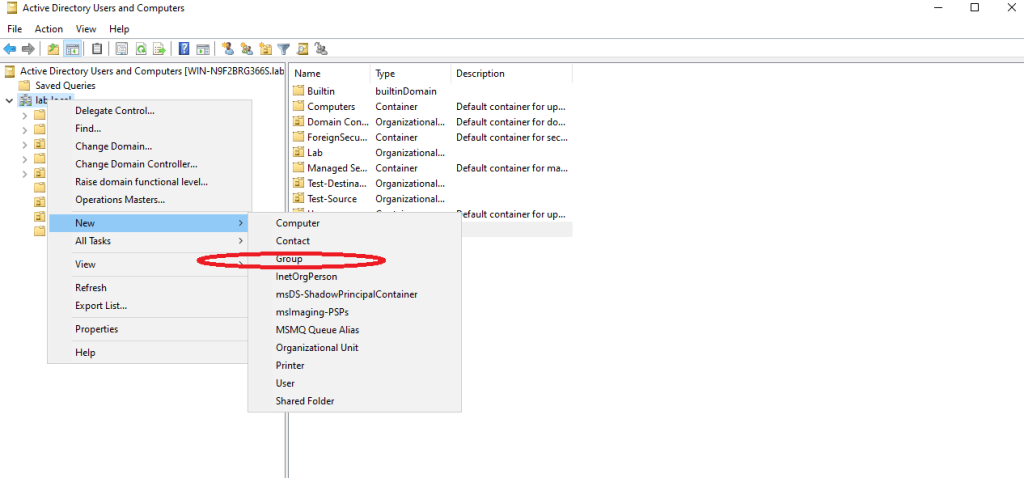
Step 2 – Delegate Permission in Active Directory
Right-click the Source OU (where users currently reside).
Select:
Delegate Control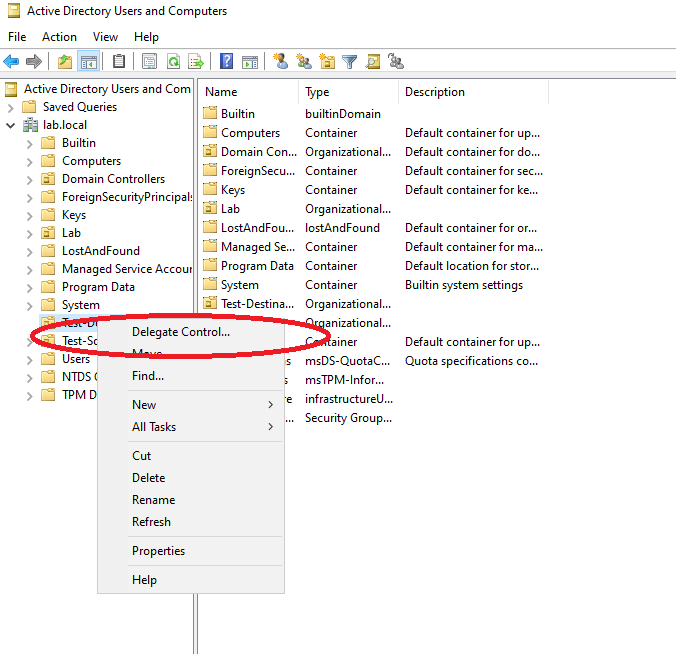
This opens the Delegation of Control Wizard.
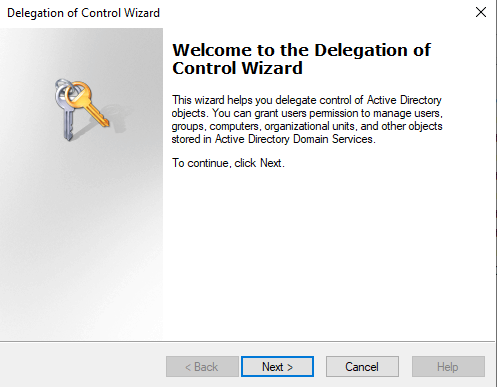
Click Next.
Add the group:
Lab-T1-UserMove
Click Next.
Select:
Create a custom task to delegate
Only the following objects in the folder
Check:
User objects
Create selected objects
Delete selected objects
Click Next.
On the permissions page, check:
Read
Write
Read all properties
Write all properties
Reset Password
Write userAccountControl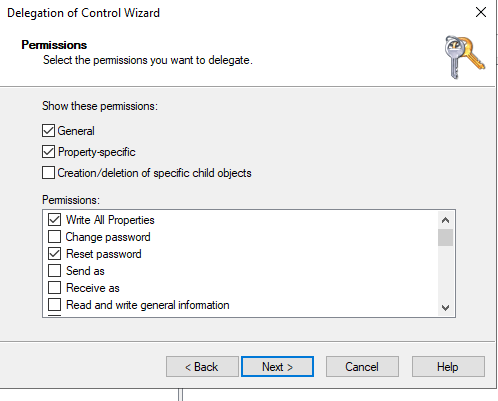
Click Finish
Step 3 – Repeat Delegation on the Destination OU
Since our example involved moving users from one OU to another, we had to repeat the same rights delegation on the destination OU.
At this point, Active Directory is configured.
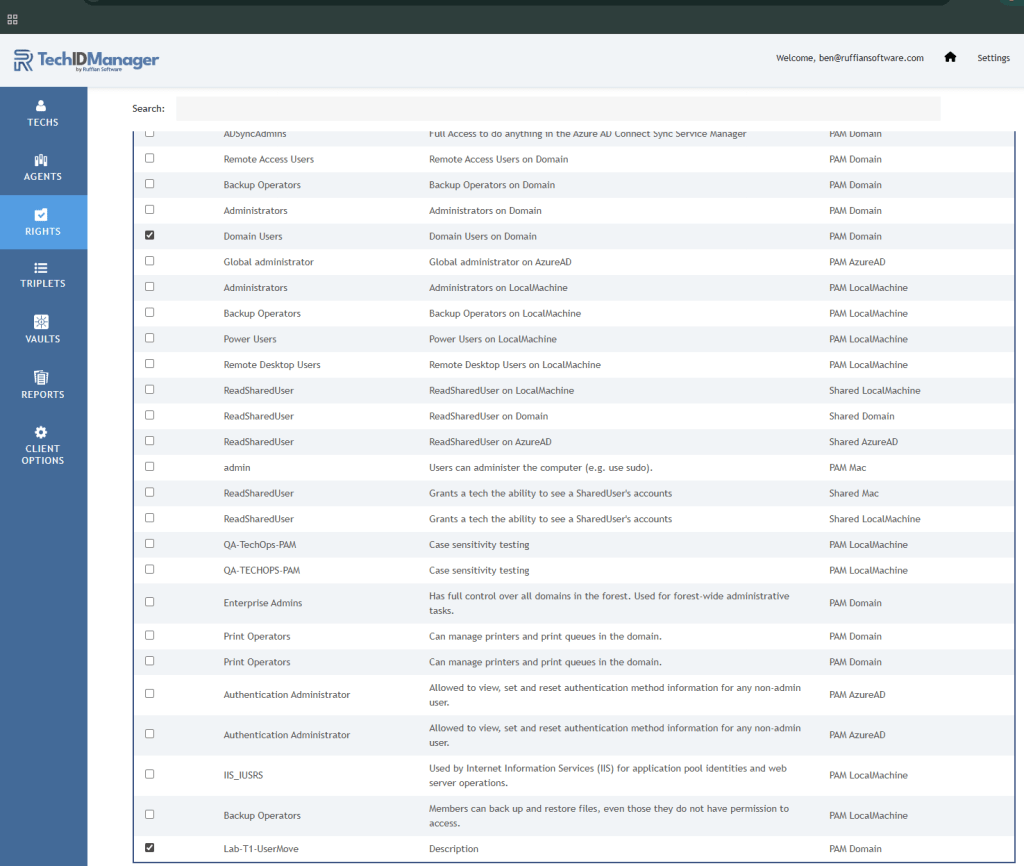
Step 4 – Create the Right in TechIDManager
Now switch to the TechIDManager Admin Portal. https://portal.ruffiansoftware.com
Create a new Right
IMPORTANT: It is imperative to use the exact security group name! In this case it is “Lab-T1-UserMove”.

IMPORTANT: Choose the right Account Type!
If the group exists in Active Directory, you must use PAM Domain
The type of the Right must match the type of the Agent that is assigning that Right.
Save the Right.
Step 5 – Assign the Right
Create a right Group containing
- Lab-T1-UserMove
- Domain Users
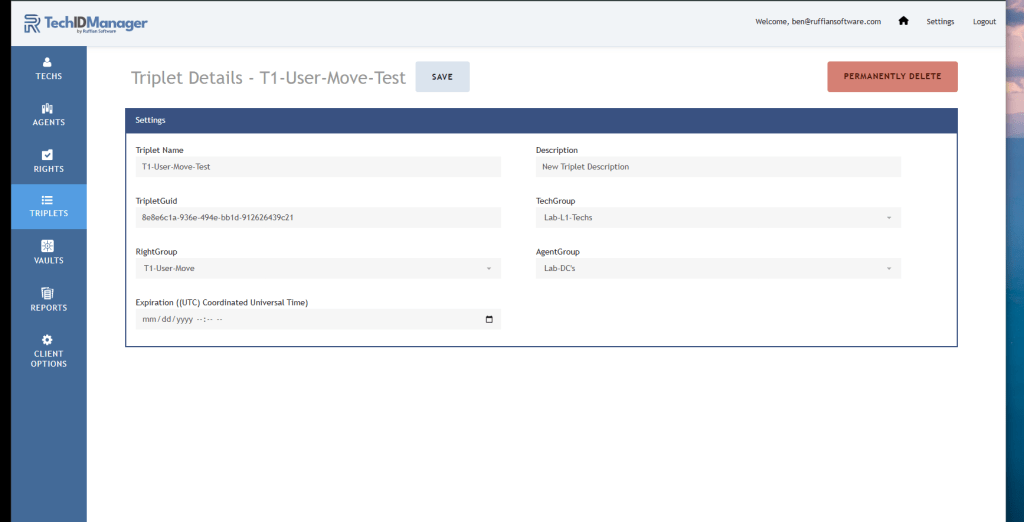
Create a Triplet including:
- The Right Group with the rights to apply
- The Tech Group of techs that should get these rights
- The Agent Group where these techs should get accounts with these rights
After Assignment:
- TechIDManager adds the technician to the AD group
- Removing the right removes them from the group
- Active Directory enforces the permissions
Important Note About Multi-Domain Environments
If a triplet assigns a tech to a group that does not exist in the target domain, that group assignment is ignored.
If the group exists in the domain, the tech is added if they are granted that Right with a Triplet. If the group exists and the tech is not granted that Right with a Triplet, then the tech is removed from the group.
This allows the same Right Group to be used safely across multiple domains without causing errors when certain groups are not present.
What the Technician sees as a result
When signed in as the technician:
- Users can be moved between OUs
- Passwords can be reset
- Users can be created
- Users can be disabled
TechIDManager handles the group assignment
Active Directory handles enforcement.
The Clean Architecture Model
- Create custom delegated groups in AD
- Delegate on required permissions
- Map those groups using Pam Domain rights
- Assign technicians to those rights
Avoid:
- Using Domain Admin for routine work
- Using Account Operators as a shortcut
- Overprivileged technician accounts
- Incorrect Right Type selection.
The Overall Result
- Least privilege
- Clear role separation
- Scalable delegation model
- Predictable technician capability